Configuration
Learn how to configure NekoBox.
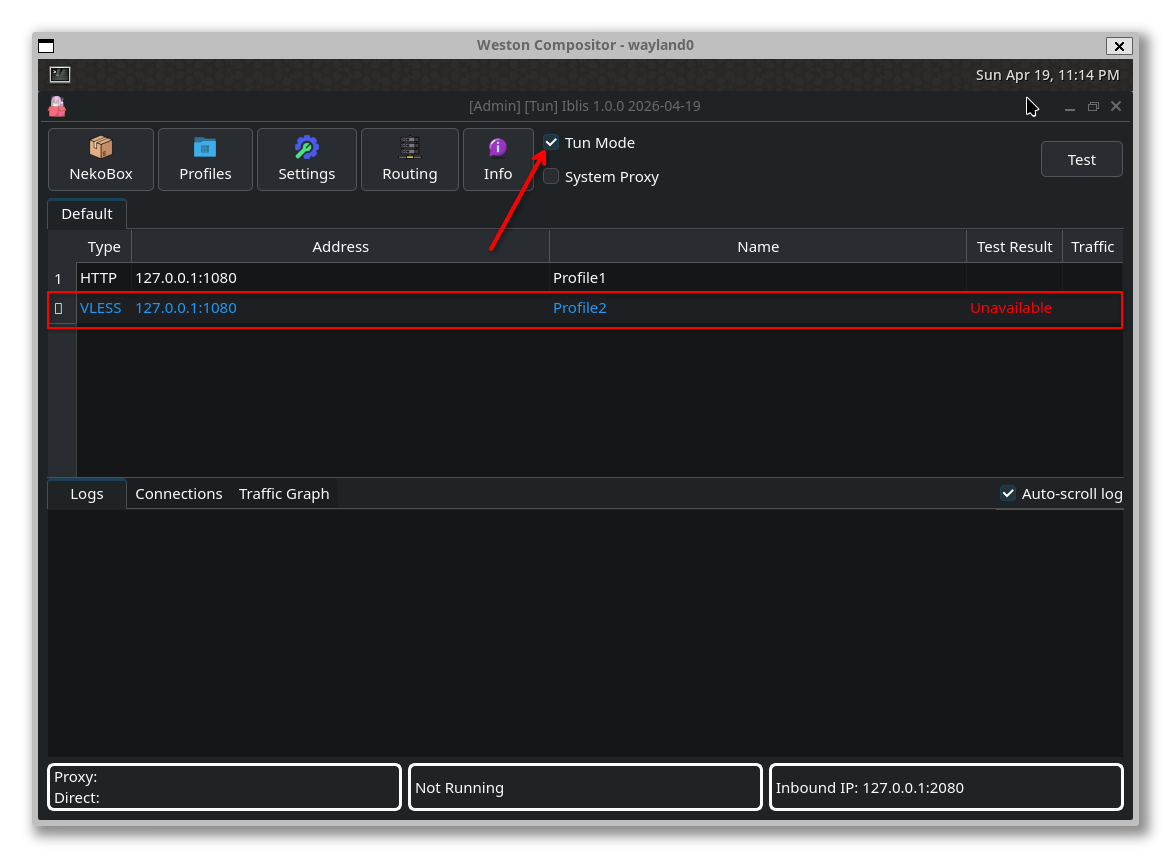
NekoBox supports two proxy modes:
System Proxy
Routes the entire system's traffic through the proxy by modifying system proxy settings. Suitable for applications like web browsers.
TUN Mode
Creates a virtual network interface to achieve global proxying. All application network traffic will route through the proxy, including software that does not support proxy settings.
TUN mode is recommended for more thorough proxying.
Note: Please disable System Proxy when enabling TUN mode; both cannot be enabled simultaneously.
Import Subscription
Method 1: Paste directly
Press Ctrl+V directly on the main interface to paste the subscription link.
After importing, the group name defaults to
Default. Right-click the group and selectUpdate Subscription(shortcut:Ctrl+U).
Method 2: Import via Settings
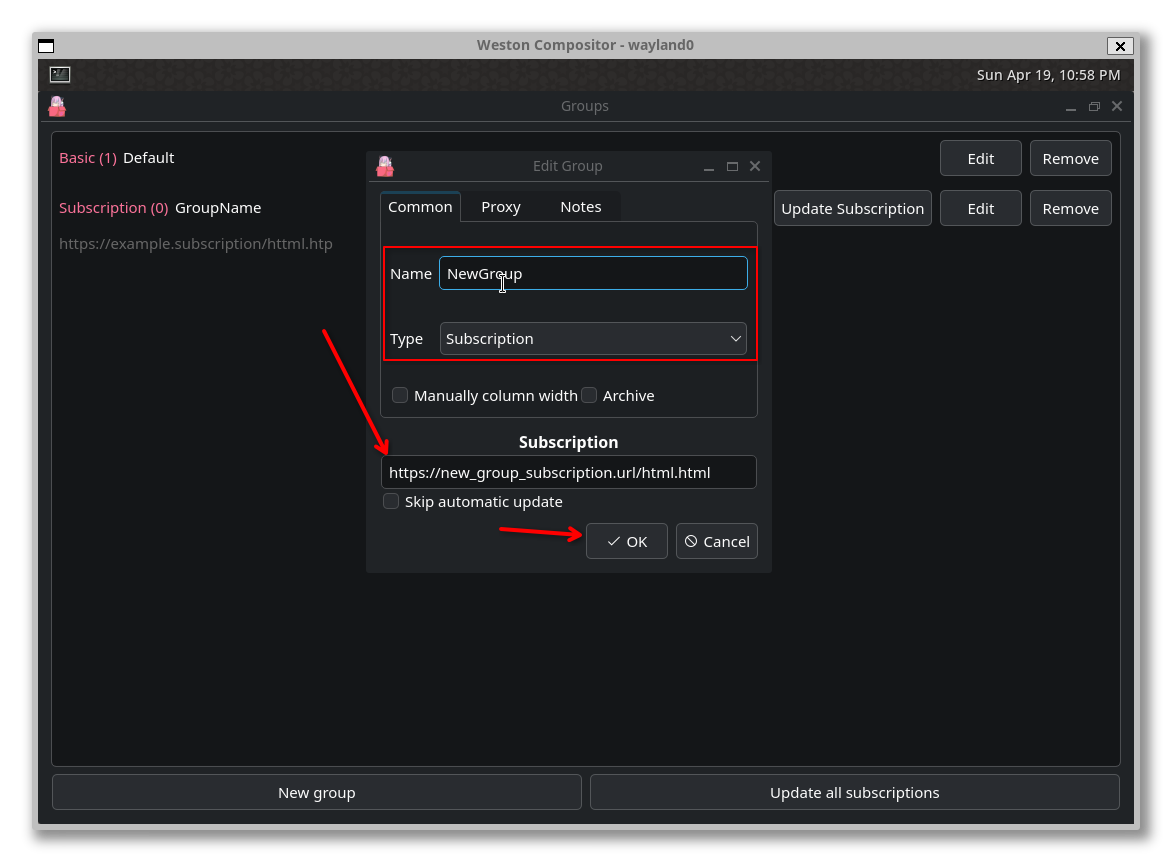
- Go to
Settings→Groups - Create a new group and enter a name
- Change the type to
Subscription - Paste the subscription link into the URL field
- Click OK to save
- Right-click the group and select
Refresh List
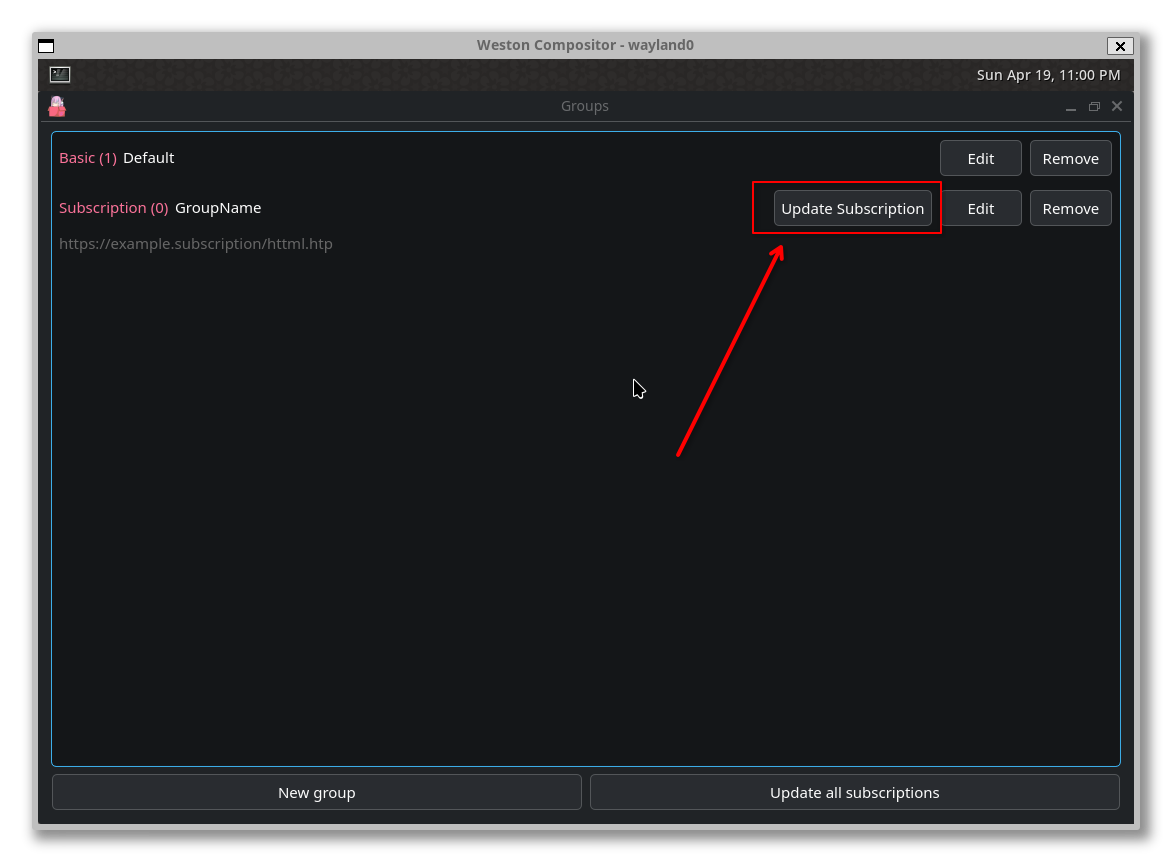
If the link is correct, the proxy list will be parsed.

Testing Latency
- Select the entire list, then right-click
- Select
URL Test Selected Items(shortcut:Ctrl+Shift+S)
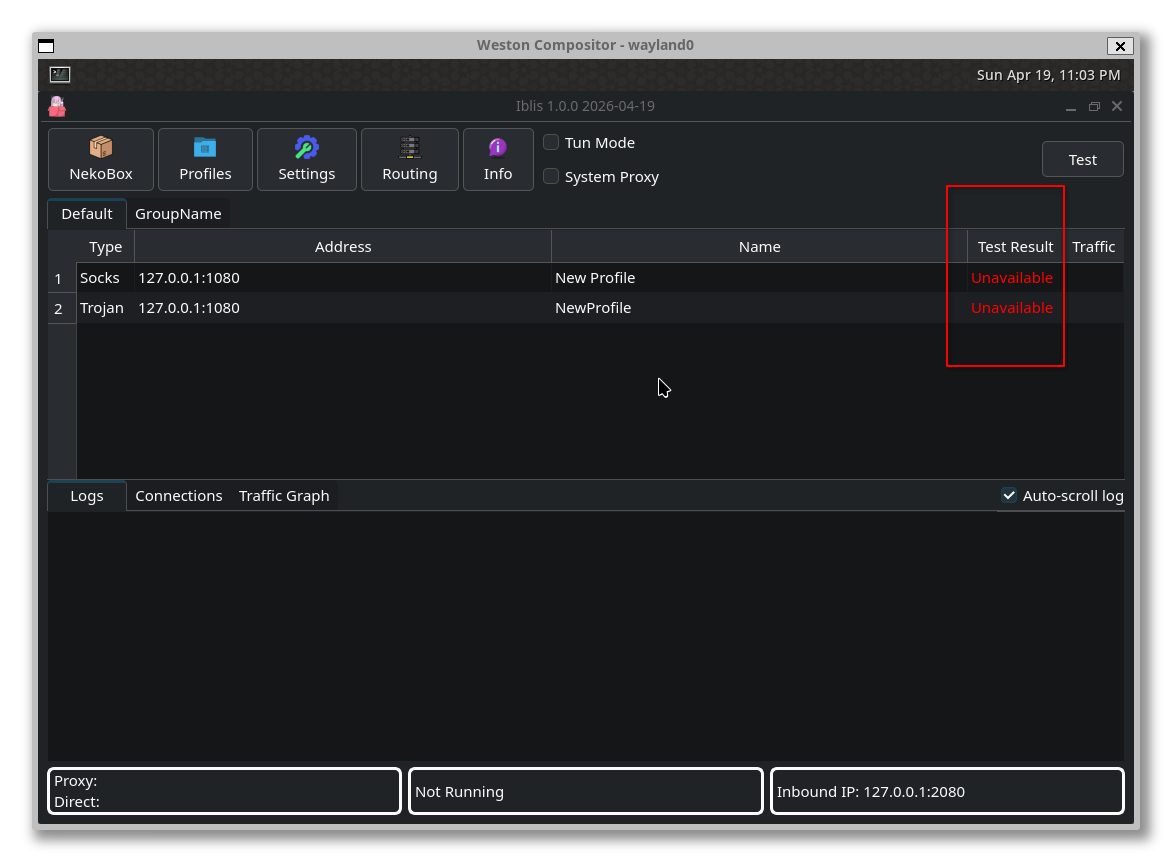
- Select the node with the lowest latency, right-click and select
Enable, or simply pressEnter
Enable Proxy
Configure Rules
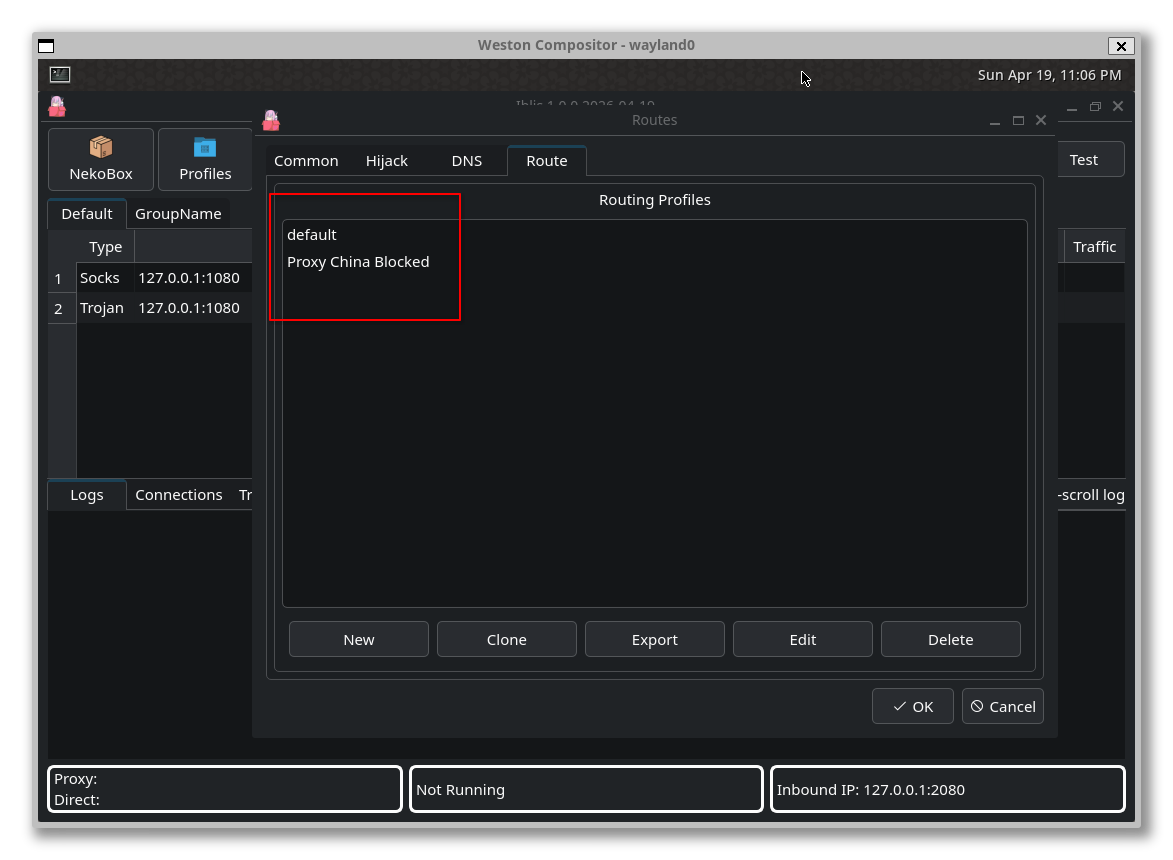
Whether using TUN mode or System Proxy, you need to configure routing rules (using Mainland China as an example):
- Click
Routes→Download Config Profile - Select
Bypass China+Bypass China Blocked - Click
Routes→Routing Settings→Routes - Delete the default routing rules, keeping only the two rules you just downloaded
Start Proxy
TUN mode is recommended.
- Start a node first
- Then select a proxy mode (TUN or System Proxy)
Note: If using TUN mode, please disable TUN first when updating the subscription, and re-enable it after the update is complete.